
Unlocking Your Android Screen Without a Factory Reset
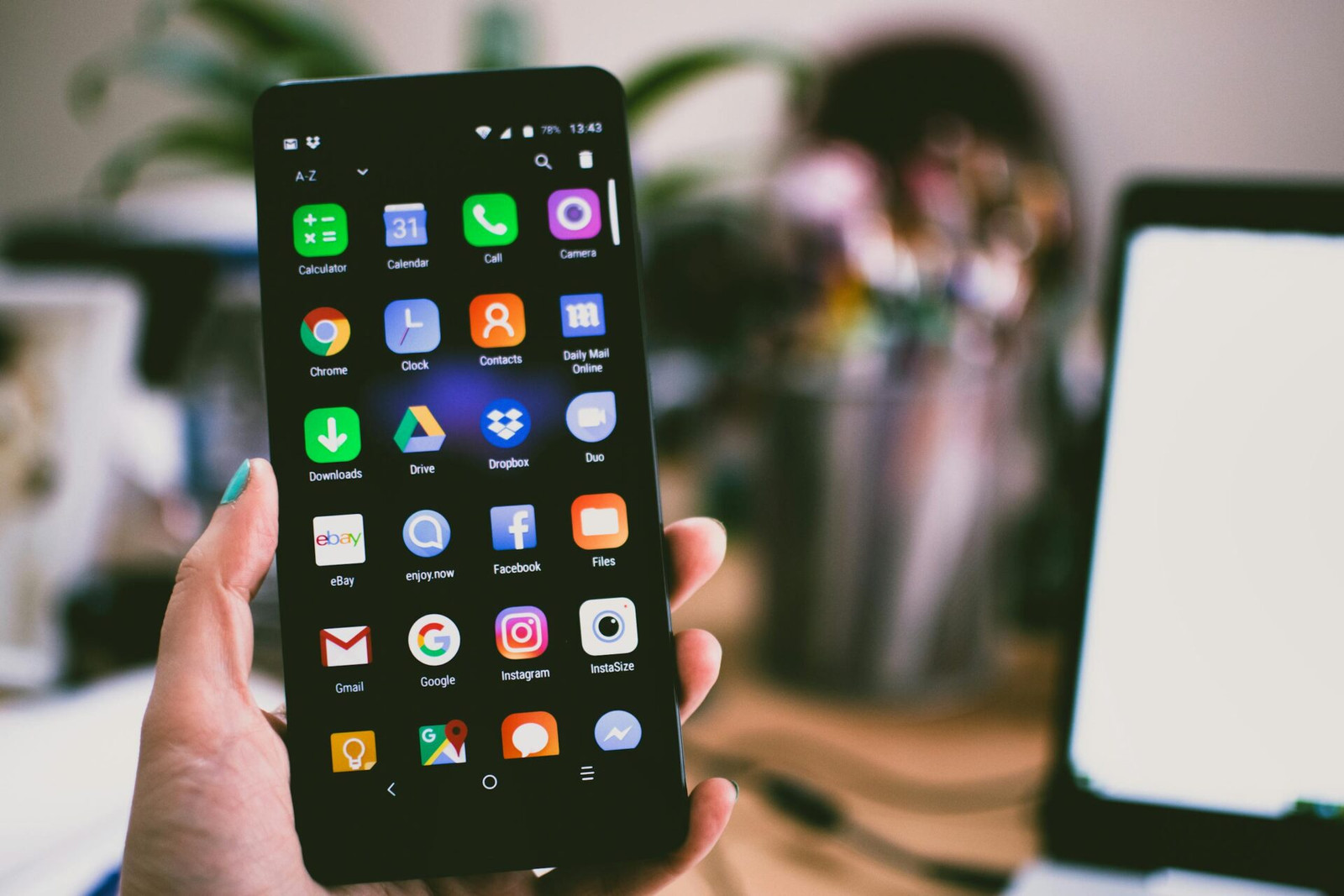
In our hyper-connected world, smartphones hold our entire digital lives—photos, financial files, work messages, and more. To keep this information private, we rely on security measures like PINs, passwords, biometrics, and pattern locks, especially when we need to unlock android screen without factory reset for data safety.
But these protections can quickly become obstacles. Maybe you’ve forgotten a pattern you rarely use, or a cracked screen makes it impossible to enter your lock or scan your fingerprint. Suddenly, you’re locked out of your own device, with your data stuck behind the screen. While a factory reset is the simplest fix, it also wipes everything—something most users want to avoid at all costs.
Four Ways to Regain Access to unlock android screen without factory reset
Option A: Google Find My Device
Google’s “Find My Device” service (previously known as Android Device Manager) is primarily used for locating a lost or stolen phone, but it can also be leveraged as a tool for security management. While the current implementation often defaults to data erasure for security purposes, on some older devices (Android 4.4 KitKat and earlier), the functionality to set a new password remotely may still be available. On most modern phones, this method works only as a last-ditch fallback, or in rare cases where a system bug lets the Lock tool reset the password.
Step-by-Step Guide:
- Access the Service: Go to the official Google Find My Device website on a computer or another smartphone.
- Sign In: Log in using the same Google account credentials linked to the locked Android phone.
- Locate Your Device: Once logged in, Google will attempt to locate all devices linked to the account. Select the locked device from the list on the left side of the screen.
- Select Action: You will be presented with three options: PLAY SOUND, SECURE DEVICE, and ERASE DEVICE.
- SECURE DEVICE (Legacy Use): On older or specific custom Android versions, selecting SECURE DEVICE may allow you to enter a new, temporary password, overriding the forgotten pattern without losing data.
- ERASE DEVICE (Modern Use): For the majority of modern phones, the ERASE DEVICE option is the only functional way to bypass the lock screen via this tool. While it performs a factory reset, it is a necessary step when no other method works, and you need immediate access.
Option B: One-Click Screen Removal with Professional Software
For users who need a guaranteed, hassle-free solution that often works without requiring pre-enabled settings like USB Debugging, dedicated third-party software provides the most reliable route. Tools like iMobie DroidKit are designed to bypass the security protocols efficiently and quickly.
Screen Unlock Feature Highlights:
- Universal Compatibility: Beyond major manufacturers like Samsung and Xiaomi, DroidKit supports over 20,000 Android device models, ensuring a solution for almost any phone or tablet.
- Comprehensive Lock Support: It can remove all types of screen locks, including digital PINs, complex passwords, pattern locks, fingerprint IDs, and even facial recognition setups.
- No Technical Skills Required: The process is designed to be simple and accessible, eliminating the need to root the device or possess advanced technical knowledge.
- Simplified Three-Step Process: The entire unlocking procedure is condensed into easy steps: Connect the device, put the device into Recovery Mode, and click to remove the lock.
Step-by-Step Guide to Unlock Your Android Phone:
- Install and Connect: Download and install DroidKit on your computer. Launch the program and select the Screen Unlock feature. Connect your locked Android device via a USB cable.
- Prepare Configuration File: The software will prepare a configuration file for your specific device model. Once ready, click the Remove Now button.
- Enter Recovery Mode: Follow the on-screen instructions, which are customized based on your phone’s brand (e.g., Samsung, LG, Huawei), to put the device into Recovery Mode. This typically involves holding combinations of the power and volume buttons.
- Wipe Cache Partition: Inside Recovery Mode, you will be guided to wipe the cache partition on your device. This is a preparatory step and does not affect your personal data.
- Unlock Complete: DroidKit will automatically initiate the screen lock removal process. After a few moments, the pattern, PIN, or password lock will be successfully removed, granting you full access to your device without a factory reset in supported models.
Option C: The Advanced Developer Method (ADB)
For users with technical confidence, the Android Debug Bridge (ADB) method offers a non-destructive way to bypass the lock screen, provided a critical prerequisite is met: USB Debugging must have been enabled on the locked phone before it was locked. If this condition is not met, this method will not work.
Step-by-Step Guide:
- Install ADB: Download and install the Android SDK and ADB tools on your computer.
- Connect Device: Connect your locked Android phone to your computer via a USB cable.
- Open Command Prompt/Terminal: Navigate to the directory where the ADB tools are installed (usually the platform-tools folder) and open a Command Prompt or Terminal window.
- Execute Commands: Type the following command and press Enter:
adb shell - Delete the Lock File: Once you have shell access, you can attempt to delete the file responsible for storing the pattern lock data.
- Reboot and Access: Reboot your Android phone. The lock screen will be gone or accept any random pattern, allowing you to quickly navigate to the device settings and set a new lock.
Option D: Built-in “Forgot Pattern” Feature
This method is specifically designed for devices running Android 4.4 (KitKat) or older. Unfortunately, modern Android versions have replaced this feature due to security concerns, making it irrelevant for newer smartphones. However, if you are using an older device, this is the easiest solution on how to unlock Android phone pattern lock without factory reset.
Step-by-Step Guide:unlock android screen without factory reset
- Trigger the Lockout: On the locked pattern screen, attempt to enter an incorrect pattern five times.
- Wait and See: After the fifth incorrect attempt, the system will temporarily lock you out from trying again and display a message indicating a waiting period (usually 30 seconds).
- Access Google Credentials: At the bottom of the screen, you should see an option labeled “Forgot Pattern” or “Forgot Password.” Tap this option.
- Sign In: You will be prompted to enter the Google Account credentials (username and password) that are registered to the locked phone.
- Sign In: You will be prompted to enter the Google Account credentials (username and password) that are registered to the locked phone.
- Reset Lock: Once the credentials are authenticated, Google will send you an email with the option to reset your pattern lock or allow you to set a new one immediately.
Conclusion|unlock android screen without factory reset
Getting locked out of your smartphone is stressful, but it doesn’t have to mean wiping everything with a factory reset. Whether you turn to Google’s Find My Device, use ADB commands, or rely on the older “Forgot Pattern” option, there are still ways to regain access—especially when you want to unlock android screen without factory reset safely.
For most people—especially those with newer Android devices where ADB isn’t already enabled—finding a method to unlock android screen without factory reset can be challenging. That’s why a dedicated, all-in-one toolkit like DroidKit is the most practical and user-friendly solution.
Beyond helping you unlock android screen without factory reset, DroidKit functions as a full Android management suite. It can bypass FRP, recover lost data (messages, photos, files), repair system issues, and help you manage or transfer data with ease.
Similar Posts
From Fiction to Reality: Can Car Heads-Up Display Really Transform Your Drive?
7 Top Benefits of Homeschooling: Why It’s the Best Choice
PS5 Error Code CE-10005-6 Causes and How to Fix It